How to put your own photo on a Garmin watch face
With a WatchFaceKit photo face your own picture becomes the background — family, a place, a pet — under numerals and hands designed to stay readable over a photo. It takes about ten minutes, works from your phone, and needs no computer, no cable and no sideloading.
What you need
- A round AMOLED Garmin that the photo face supports — the exact model list is on each face page.
- Garmin Connect on your phone, paired with the watch and allowed to run in the background.
- A photo face: Photo Classic Free (free) Photo Heritage or Your Style Face ($2.99 each); all of them are listed under photo watch faces.
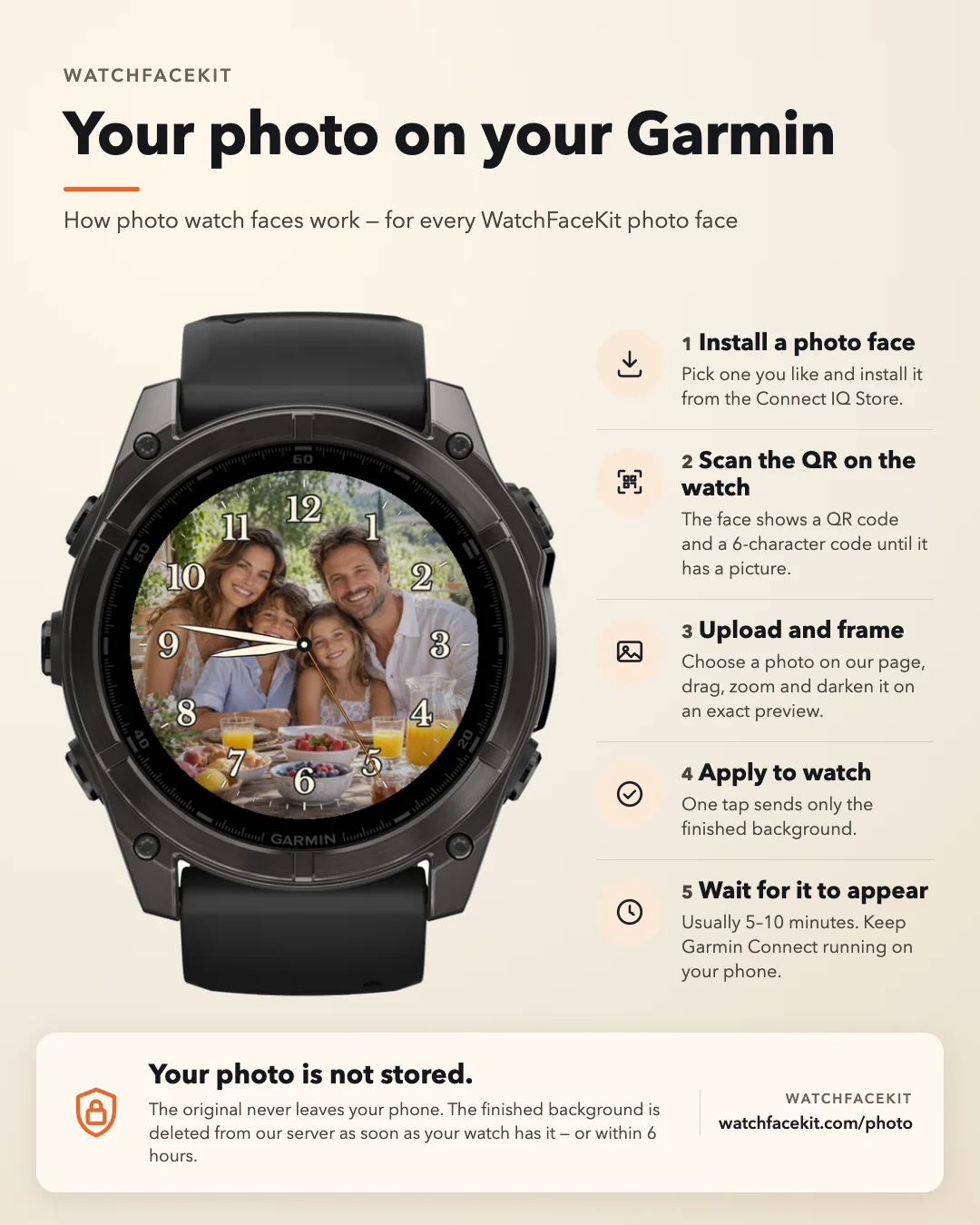
Step 1 — Install a photo face
Install the face from the Connect IQ Store like any other face, then select it on the watch. If you have not switched faces before, see how to change your Garmin watch face.
Photo watch faces to choose from
Photo Classic Free
Large classic numerals and outlined hands over your own picture. Free, 47 round AMOLED models.
Photo Heritage
Your photo in a circle inside a classic chapter ring, seven frame colours, gold-edged ivory hands. $2.99.
Your Style Face
Big digital time over your photo: 4 font styles, 15 numeral systems, 7 digit colours and photo tints. $2.99.
Step 2 — Scan the QR code on the watch
Until it has a picture, the face shows a QR code and a six-character code. Scan the QR with your phone camera: our photo page opens already paired with your watch and knowing its model and screen size.
No camera handy? Open watchfacekit.com/photo and type the six characters. Each code works once, changes every 30 minutes and expires after an hour; the watch face settings have Show pairing code for a fresh one.
Step 3 — Upload and frame your photo
Choose a picture on your phone. Drag it to move, pinch or use the slider to zoom, and darken it so the hands stay readable. The preview is your watch screen pixel for pixel, with the face’s own numerals and hands on top, so what you see is what you get.
Step 4 — Apply to watch
Tap Apply to watch. The photo is cropped on your phone and only the finished background — about 50–150 KB — is uploaded. The page shows each stage: uploaded, waiting for your watch, downloading, installed.
Step 5 — Wait for it to appear
The watch checks for a new photo every five minutes through Garmin Connect, so it usually arrives within five to ten minutes. A large picture or a slow connection can take a few more cycles. Keep the phone near the watch with Garmin Connect running, and keep the page open until it says Installed. After that the photo lives on the watch and works offline.
Changing or removing the photo
To use another picture, open the face settings on the watch, choose Show pairing code and repeat steps 2–5. Remove photo deletes the picture from the watch and keeps the pairing, so a new one is quick. Forget this watch on the photo page removes the pairing from that phone.
What happens to your photo
- The original never leaves your phone; cropping and darkening happen there.
- Only the finished background is uploaded, and it is permanently deleted from our server as soon as the watch confirms it has it.
- An upload that never reaches a watch is deleted within 6 hours.
- There is no account. We keep a pairing record with the watch model and screen size so you can change the photo later. Full details: Privacy Policy.
If something does not work
- “Code expired” — open the face settings on the watch and choose Show pairing code for a fresh one.
- Stuck on “Waiting for your watch” — open Garmin Connect, check Bluetooth, keep the photo face selected and wait another five minutes; the page offers Send again.
- No QR on the watch — the face already has a photo; use Show pairing code in its settings.
- No photo in always-on — by design: always-on shows only dim hands and hour marks to spare the screen and battery.
- Your watch is not listed — photo faces need a round AMOLED screen; rectangular and MIP models are not supported.
Want to change the layout instead of the background? The custom builder reshapes a finished face with one code.