How to install a Garmin watch face
Garmin faces install through the Connect IQ Store and sync to your watch through Garmin Connect — no sideloading, no fiddly files. Here is the whole flow, plus how to change or remove a face and fix the usual snags. Start to finish, it takes under a minute.
What you need first
- The Connect IQ Store app installed on your phone (iOS or Android).
- The Garmin Connect app, with your watch already paired over Bluetooth.
- Your watch's exact model name — for example "Fenix 7 Pro" rather than just "Fenix".
Install a face, step by step
- Open the Connect IQ Store app and sign in with the same Garmin account your watch uses.
- Find a face and open it. Check the compatible devices list and confirm your exact model is there.
- Tap Download. Free faces queue immediately; paid faces download after a quick checkout. The face is now queued for your watch.
- Open Garmin Connect and let it sync over Bluetooth. The face transfers during this sync — keep the phone and watch close.
- Select it on the watch: press and hold the current face, or go to Settings → Watch Face, and choose the new one. Many faces expose extra options (colors, data fields) right there.
Tip: if a face has settings, you usually adjust them from the Connect IQ Store app under the installed face — change accent color or data fields there, then sync again.
How to change your watch face
To switch between installed faces, press and hold the center of the current face on the watch until the face picker appears, then swipe and tap to select. On button watches, you can also go to Settings → Watch Face and scroll through your installed faces.
How to remove a face
Open the Connect IQ Store app, go to My Device → Watch Faces, and remove the ones you no longer use. Garmin watches keep a limited number of face slots, so clearing old faces frees space for new ones.
If a face does not appear
- Model mismatch: the most common cause. Re-open the face listing and confirm your exact model is supported.
- Full slots: remove an unused face and sync again.
- Sync stalled: open Garmin Connect, pull to sync manually, and keep Bluetooth on with the watch nearby.
- Battery drain after install: some always-on layouts cost more on AMOLED. Check the face's settings for a dim or battery-saver mode, or pick a battery-smart face.
Free places on the watch
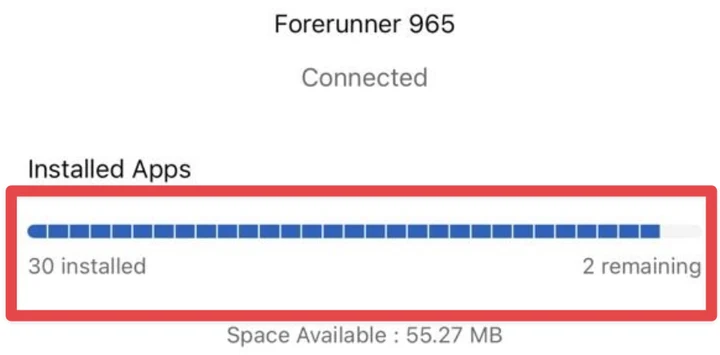
Every Garmin watch holds a limited number of Connect IQ items — watch faces, apps and data fields together; the number depends on the model. Before installing, check how many places are left in the Connect IQ app: Device → Installed Apps. If the watch is full, a new face does not appear in the list until you delete one you do not use.
Without Connect IQ: install a .prg by cable
A watch face or app you already have as a .prg file goes into the GARMIN/Apps folder on the watch.
- Windows: connect the cable, open File Explorer, open the watch, then Internal Storage (or Primary) → GARMIN → Apps, and copy the .prg there.
- Mac: a Mac cannot open newer Garmin watches over USB. Use our USB file transfer in Chrome or Edge: connect the watch, drop the .prg, done.
- Older models that show up as a USB drive: open the GARMIN drive in Finder or File Explorer and copy the file into GARMIN/Apps.
- Unplug the cable. The face appears in the watch face list on the watch.
Watch faces from the Connect IQ Store still install through the app as described above; the cable route is for files you already have.
Ready to try one?
Every face in our collection runs live in your browser first, so you know exactly what you are getting before you download. Not sure which to pick? Start with the best Garmin watch faces guide.