My watch faces
You are signed out.
No watch faces here yet
Test orders
These orders were made in test mode (no real payment). They are recorded, but test orders never unlock watch face files.
1Choose your watch
2Connect your watch
On a computer with Chrome or Edge: connect the watch with its USB cable, wait 20–30 seconds and press «Connect watch». Then press «Install» next to a face below. No app needed.
- Map · .img
- Route · .gpx / .fit
- Music · .mp3 / .m4a
- Watch face · .prg
Files on the watch
Technical log
3Install your watch faces
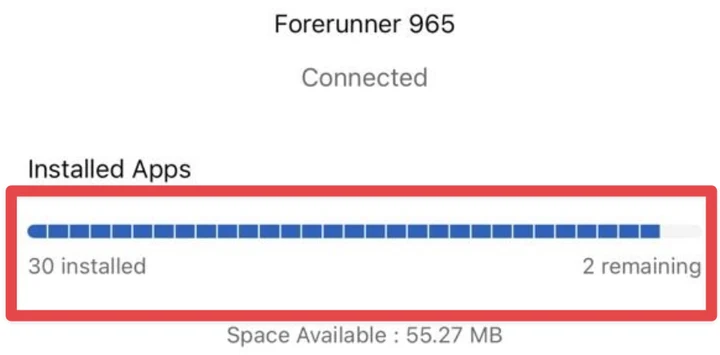
Before installing, check how many free places your watch has: Connect IQ app on your phone → Device → Installed Apps («… remaining»). Every Garmin watch holds a limited number of Connect IQ items — watch faces, apps and data fields together; the number depends on the model. No free places? Remove one you do not use first, otherwise the new face stays hidden. The limit is Garmin’s, not ours: the faces you bought always stay here in «My watch faces», installed or not — remove one from the watch any time and install it again later.
New watch faces first
We e-mail you when a new face is out — including the free ones you can get only here, before they reach the Connect IQ Store.
Installing a pack: step-by-step guide →
After installing
- A face is not in the list although it was installed? The watch is full: every Garmin watch holds a limited number of Connect IQ items — watch faces, apps and data fields together, the number depends on the model — and the ones over the limit stay hidden. The Connect IQ app on your phone shows how many are left (Device → Installed Apps). Remove faces you do not use and install again — or install only the faces you want with «Install». Faces from the Connect IQ Store are removed in the Connect IQ app (Device → Watch Faces).
- To remove a face installed by cable: on newer models (fēnix 8/9, Forerunner 965/970 and others) the watch hides the file once you unplug, so it is not in File Explorer or in «Files on the watch» any more — remove it with Garmin Express on Windows (it does not work on a Mac), or in the Connect IQ Store app on the watch if your model has one. On models where the file stays in GARMIN/Apps, Delete in «Files on the watch» works.
- Unplug the watch. On most models hold the UP / MENU button on the watch face, choose Watch Face and pick the new face.
- These faces are set up on the watch itself (watch face menu → Customize): phone settings work only for faces installed from the Connect IQ Store.
- Updates do not arrive automatically. When a new version is out, open this page again and install it the same way.
Without Chrome
- Windows: download the .prg file(s), connect the watch and copy them into the GARMIN\Apps folder in File Explorer.
- Mac: newer macOS cannot open the watch as a drive — use Chrome or Edge and the button above.