How to install a watch face pack on your Garmin
A pack is several watch faces at once. You install the ones you want from «My watch faces», one at a time, and switch between them on the watch like any other face. It takes a few minutes.
- 1PayRight after payment you get an e-mail with a sign-in link to «My watch faces».
- 2Open it on a computerMac or Windows with Chrome or Edge. Choose your watch model there.
- 3Connect the cablePress «Install» next to each face you want — one at a time.
- 4Pick it on the watchUnplug, hold UP / MENU → Watch Face → choose. Settings are made on the watch.
- A phone alone is not enough: these faces cannot be installed from the Garmin Connect or Connect IQ app.
- Only the faces built for your model are installed — check your watch in the list on this page.
- Before installing, check free places in the Connect IQ app (Device → Installed Apps): every watch holds a limited number of faces, apps and data fields in total. On a full watch a new face stays hidden. This is Garmin’s limit, not ours: your faces stay in «My watch faces» even when they are not on the watch.
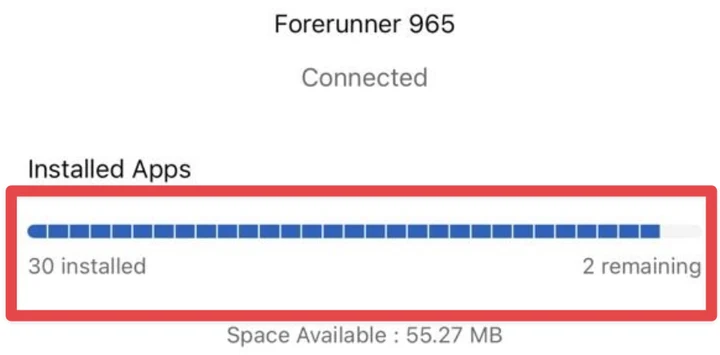
- Removing a face installed by cable: Garmin Express on Windows, or the Connect IQ Store app on the watch where your model has one.
- Updates do not arrive by themselves: a new version appears in «My watch faces» and is installed the same way.
Windows without Chrome or Edge: download the .prg file(s) and copy them into GARMIN\Apps on the watch in File Explorer.
Before you start
- A computer (Mac or Windows) with Chrome or Edge, and the USB cable of your watch. A phone alone is not enough.
- Know your exact model, with its size if it has several (for example «fēnix 8 47 mm»): Settings → System → About on the watch. Each face file is built for one model.
- Quit Garmin Express and other file transfer apps on the computer — they keep the watch busy. Turn off the watch PIN lock while you transfer.
- Check free places: Connect IQ app on your phone → Device → Installed Apps shows «… installed / … remaining». Every watch holds a limited number of Connect IQ items — faces, apps and data fields together; the number depends on the model. For each face you want, one place must be free — remove ones you do not use first.
1. Open «My watch faces»
- Press the button in the e-mail you got after paying. The link works once; if it has expired, ask for a new one on the sign-in page with the same e-mail address.
- Choose your watch model at the top. Every face of the pack built for it gets its own row; a face your model cannot run says so.
2. Install the faces you want
- Connect the watch with its cable, press «Connect watch» and pick the Garmin entry in the browser window.
- Press «Install» next to a face. It goes onto the watch and the row says «On the watch» — or why not.
- Install only the ones you want: the others stay in «My watch faces», install them any time later.
- If a face fails, press «Install» again.
- The same card lists the files on the watch and the free space, so you can see the faces arrive.
Windows: by hand, if the button does not reach the watch
- Windows opens the watch in File Explorer and may keep it busy for the browser. Then press «Download .prg» for each face.
- Open the watch in File Explorer → Internal Storage (or Primary) → GARMIN → Apps and copy all the files there. They are named WFK_<FACE>.PRG.
3. Pick a face on the watch
- Unplug the cable. Hold UP / MENU on the current face (or the centre of the screen on touch models), open Watch Face and scroll: all faces of the pack are in the list.
- Settings of these faces are changed on the watch: watch face menu → Customize. The settings screen in the phone app works only for faces installed from the Connect IQ Store.
Space on the watch
- Every Garmin watch holds a limited number of Connect IQ items — watch faces, apps and data fields together. The number depends on the model, and it is a limit on how many, not on storage space. The Connect IQ app on your phone shows it: Device → Installed Apps, «N installed / N remaining».
- A face that was installed but does not appear in the list is over that limit: remove faces you do not use, then install again. Or install only the faces you want with «Install».
- The limit is Garmin’s, not ours. The faces you bought always stay in «My watch faces», whether they are on the watch or not: swap them whenever you like — remove one from the watch, install another, and bring the first back later.
- Faces from a pack: To remove a face installed by cable: on newer models (fēnix 8/9, Forerunner 965/970 and others) the watch hides the file once you unplug, so it is not in File Explorer or in «Files on the watch» any more — remove it with Garmin Express on Windows (it does not work on a Mac), or in the Connect IQ Store app on the watch if your model has one. On models where the file stays in GARMIN/Apps, Delete in «Files on the watch» works.
- Faces from the Connect IQ Store: Connect IQ app on your phone → Device → Watch Faces.
Updates
- Updates do not arrive by themselves. When a new version is out, it is in «My watch faces»: install it the same way — the file with the same name is replaced.
If something goes wrong
- A face does not start or shows an «IQ» symbol: it was built for another model. Choose your exact model in «My watch faces» and install again.
- The watch is not in the browser window: unlock the watch, reconnect the cable, wait 20–30 seconds (the watch needs that long to switch to file transfer) and press «Connect watch» again; try another cable or port.
- Still stuck? Write to contact@nadzeyayashchuk.com with your order number and watch model — we fix it, or you get your money back.
Packs
- Essentials Pack — 8 faces
- Classic Nine — 1 faces
- Domestique — 1 faces
- Lumen — 1 faces
- 24-Hour Clock — 1 faces
- Retro LCD Digital — 1 faces
See also: Returns and refunds · Terms of use · Privacy policy