24-Hour Clock — buy the Garmin watch face here
24-Hour Clock for €2.99 once. You get the watch file for your Garmin and put it on the watch with its USB cable. No Connect IQ Store purchase needed.
The watch face
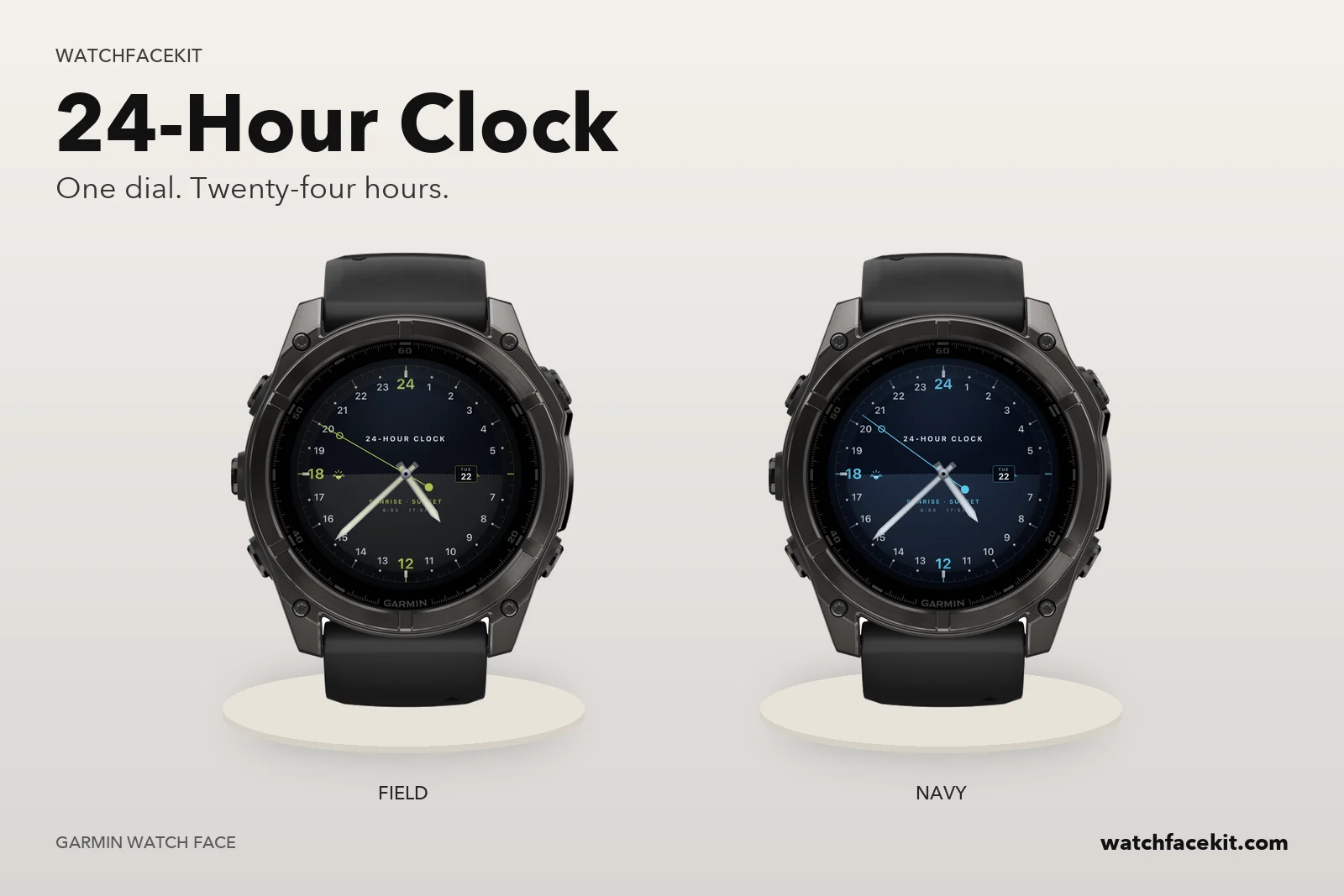 24-Hour Clock
Your watch
It runs on these watches:
- Approach S50
- Approach S70 42mm
- Approach S70 47mm
- Approach S72 43mm
- Approach S72 47mm
- D2™ Mach 1
- D2™ Mach 2
- D2™ Mach 2 Pro
- Descent™ G2
- Descent™ Mk3 43mm / Mk3i 43mm
- Descent™ Mk3i 51mm
- epix™ (Gen 2) / quatix 7 Sapphire
- epix™ Pro (Gen 2) 42mm
- epix™ Pro (Gen 2) 47mm / quatix 7 Pro
- epix™ Pro (Gen 2) 51mm / D2™ Mach 1 Pro / tactix 7 – AMOLED Edition
- fēnix 8 43mm
- fēnix 8 47mm / 51mm / tactix 8 47mm / 51mm / quatix 8 47mm / 51mm
- fēnix 8 Pro 47mm / 51mm / MicroLED / quatix 8 Pro 47mm / 51mm
- fēnix 9 43mm
- fēnix 9 47mm / 51mm
- fēnix 9 Pro 43mm
- fēnix 9 Pro 47mm
- fēnix 9 Pro 51mm
- fēnix E
- Forerunner 165
- Forerunner 165 Music
- Forerunner 170
- Forerunner 170 Music
- Forerunner 265
- Forerunner 265s
- Forerunner 570 42mm
- Forerunner 570 47mm
- Forerunner 70
- Forerunner 965
- Forerunner 970
- Instinct 3 AMOLED 45mm
- Instinct 3 AMOLED 50mm
- MARQ (Gen 2) Athlete / Adventurer / Captain / Golfer / Carbon Edition / Commander - Carbon Edition
- MARQ (Gen 2) Aviator
- MARQ (Gen 3) Adventurer / Athlete / Aviator / Commander / Diver / Golfer
- Venu 2
- Venu 2 Plus
- Venu 2S
- Venu 3
- Venu 3S
- Venu 4 41mm
- Venu 4 45mm / D2™ Air X15
- vívoactive 5
- vívoactive 6
Your model is not here? Then the pack is not for your watch yet — please do not buy it.
How the faces get onto the watch
- You need a computer and the USB cable of your watch. A phone alone is not enough: the files cannot be installed from the Garmin Connect app.
- Mac or Windows with Chrome or Edge: connect the watch, open «My watch faces» on this site and press «Install» next to each face you want.
- Windows: you can also download the files and copy them into the GARMIN\Apps folder of the watch in File Explorer.
How this differs from the Connect IQ Store version
- The faces are the same designs. You set them up on the watch itself (hold UP / MENU on the face → Customize); the settings screen in the phone app works only for faces installed from the Connect IQ Store.
- Updates do not arrive by themselves. When we release a new version, it appears in «My watch faces» and you install it the same way.
- The files are for your own watches. Your purchase stays in «My watch faces» — sign in with your e-mail any time.